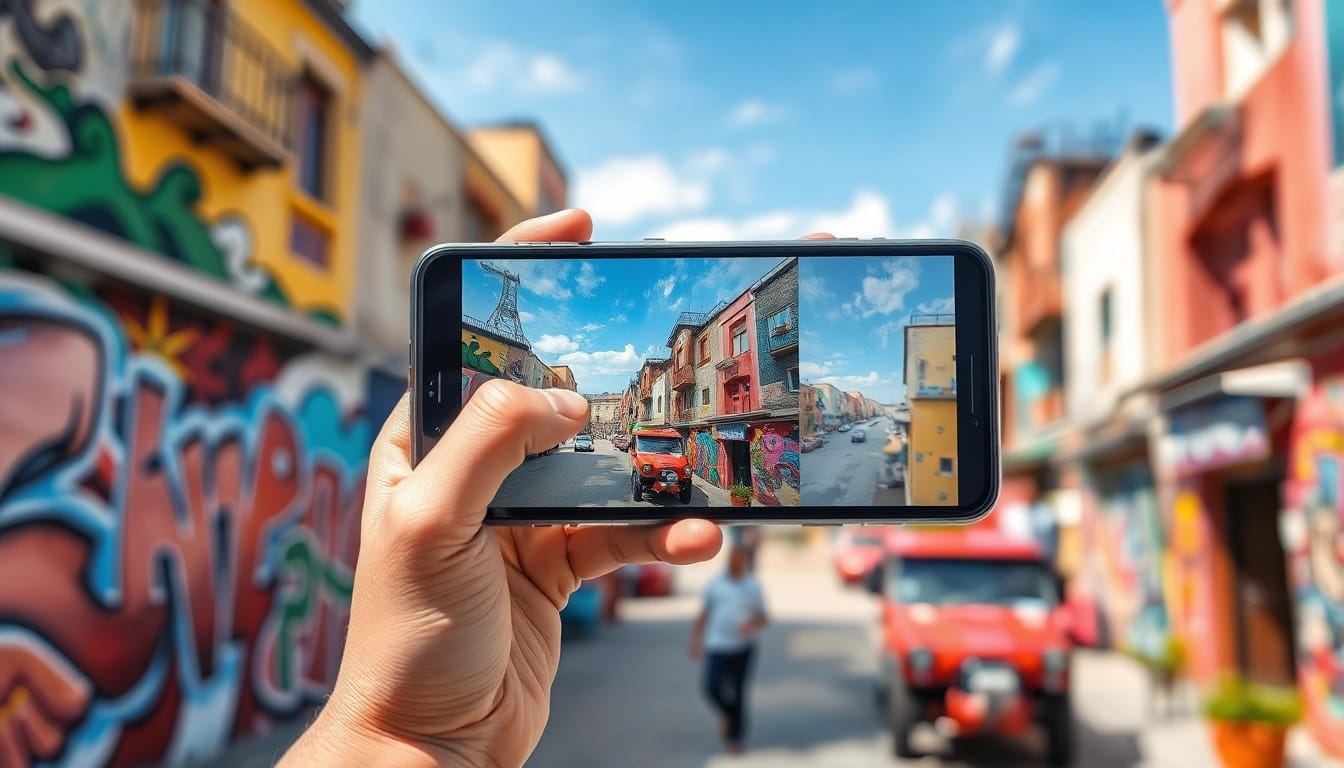
Understanding Mobile Lightroom Presets
What are Mobile Lightroom Presets?
Mobile Lightroom presets are pre-defined editing settings that can be applied to photographs within the Adobe Lightroom mobile application. These presets allow users to enhance their images quickly and consistently, resulting in a professional look with minimal effort. Essentially, a preset is a collection of adjustments to settings like exposure, contrast, color balance, and saturation, all tailored to give a specific aesthetic. For both beginners and seasoned photographers, these presets can significantly streamline the editing workflow, making it easy to achieve stunning results with just a few taps.
Benefits of Using Mobile Lightroom Presets
The primary advantage of utilizing mobile Lightroom presets is the substantial time savings they offer. Rather than manually adjusting various settings for each photo, users can apply a preset that reflects their desired style, resulting in a cohesive series of images. Some other benefits include:
- Consistency: Presets help maintain a uniform look across different photos, ensuring that your brand or personal style is recognized.
- Inspiration: They can serve as a starting point for editors, helping to spark creativity and new ideas in photo presentation.
- Accessibility: With mobile Lightroom being available on numerous devices, presets can be applied and edited on-the-go, making digital photography more accessible.
- Professional Touch: Even novices can achieve advanced edits with the right preset, enhancing the overall quality of their photographs.
How Mobile Lightroom Presets Work
Mobile Lightroom presets operate through the application’s editing interface. When a user selects a preset, Lightrooms applies multiple fine-tuned adjustments to the selected image. Each preset is essentially a coded set of instructions detailing how to modify specific parameters. Whether increasing vibrance or decreasing highlights, presets automate these changes, enabling photographers to achieve their desired aesthetic efficiently. Furthermore, users can tweak settings post-application for further personalization, allowing for a blend of preset application and individualized editing.
Getting Started with Mobile Lightroom Presets
Installing Mobile Lightroom Presets
Installing mobile Lightroom presets varies according to where you've acquired them. Generally, the process includes downloading a file format that Lightroom recognizes, such as a .lrtemplate or .xmp file. Here's a straightforward guide to help you get started:
- Download the preset files from a trusted source.
- Open Adobe Lightroom Mobile and navigate to the settings menu.
- Select 'Presets' and then tap 'Import Presets.'
- Locate your downloaded files and confirm the import process.
Once installed, these presets will be readily available for any editing task you undertake, making it easier to bring your artistic vision to life.
Importing and Applying Presets on Mobile
Once your presets are installed, applying them to your photos is simple. Follow these steps:
- Open a photo in Lightroom Mobile.
- Tap on the 'Presets' icon at the bottom of the editing panel.
- Choose your desired preset from the list.
- Apply it by tapping on the preset's name, and adjust any settings if needed.
This intuitive process empowers users to experiment freely and find the best fits for various images, thus enhancing creative expression.
Best Practices for Optimizing Preset Usage
To maximize the effectiveness of mobile Lightroom presets, it's vital to understand a few best practices:
- Choose Wisely: Always select a preset that complements the context and subject of your image. Not every preset works for all scenarios.
- Adjust Settings: Post-application, don't hesitate to modify exposure, contrast, or other variables to fit the individual photo better.
- Save Your Favorites: Create a collection of your top presets for quick access, speeding up your workflow.
- Regularly Update: Keep your presets fresh by experimenting with different styles and trends in photography.
By adhering to these practices, you can ensure a more efficient and enjoyable editing process while still enjoying the benefits of mobile Lightroom presets.
Creating Your Own Mobile Lightroom Presets
Step-by-Step Guide to Custom Presets
Creating a personal preset allows you to add a unique touch to your editing style. Follow these steps to develop your custom presets:
- Edit a photo using your preferred adjustments, playing with various settings.
- Once you’re satisfied with the result, navigate to the settings pane in the editing section.
- Select 'Create Preset' and choose a descriptive name.
- Select which adjustments to include in the preset and save.
Now, your custom preset can be applied to other photos, creating a cohesive style across your portfolio.
Tips for Personalizing Your Visual Style
When creating custom presets, consider the following strategies to ensure they truly reflect your vision:
- Experiment: Try different combinations of color grading, brightness, and sharpness to identify what resonates with your style.
- Study Influencers: Observe photographers who inspire you, analyzing their presets to understand what makes their aesthetic distinctive.
- Focus on Themes: Align presets with themes like vintage, moody, or vibrant, making sure they complement your photographic niche.
- Seek Feedback: Share your presets with peers for honest critiques that could lead to valuable improvements.
Testing and Refining Your Presets
Once you have created your custom presets, it’s essential to test and refine them. Here’s how to do it effectively:
- Test on Various Images: Apply the presets to a wide range of photos to assess how well they perform under different lighting and conditions.
- Make Adjustments: Be prepared to tweak the preset settings based on your testing results, ensuring optimal performance across different contexts.
- Save Versions: Keep variations of a preset as you refine it, allowing you to revert to earlier stages if needed.
- Observe Trends: Stay attuned to emerging trends in photography to keep your presets relevant and fresh.
Showcasing Work with Mobile Lightroom Presets
Platforms for Sharing Edits
Once your photos are perfectly edited with presets, showcasing them is essential. Consider using the following platforms:
- Instagram: A visual platform perfect for photographers, allowing you to share both single images and curated feeds.
- Pinterest: Great for driving traffic to your portfolio or blog, where users can discover your work and learn about your editing techniques.
- Adobe Portfolio: Offers a professionally styled platform to showcase all your photography work under one roof.
- Flickr: A classic choice for photographers, providing a community of like-minded individuals pursuing artistic growth.
Professional Portfolio Tips
A successful portfolio reflects not only your best work but also your unique style. Here are some key tips:
- Curate Wisely: Select only your strongest images, making sure they align with your defined personal style.
- Tell a Story: Arrange your photos in a way that tells a cohesive narrative, which can engage viewers deeply.
- Regular Updates: Refresh your portfolio regularly to showcase your growth and new skills.
- Seek Constructive Criticism: Share your portfolio with fellow photographers and mentors, asking for feedback on how to improve.
Engaging with Your Audience Through Before-and-After Shots
Before-and-after comparisons captivate audiences by demonstrating the transformative power of mobile Lightroom presets. Here’s how to engage effectively:
- Include Descriptions: Briefly explain the purpose of your edits and how the presets contributed to the transformation.
- Interactive Stories: Use Instagram stories to post before-and-after shots, allowing viewers to swipe between the two for direct comparison.
- Video Tutorials: Create short clips showing the editing process, highlighting how presets were applied, to inspire and educate your audience.
- Engagement Questions: Encourage feedback by asking followers which version they prefer and inviting their thoughts on style choices.
Advanced Techniques Using Mobile Lightroom Presets
Mixing and Matching Presets
Combining different mobile Lightroom presets can help achieve a unique visual style. Here’s how to do it effectively:
- Layering Presets: Apply one preset, then adjust the settings and apply a different one to create a richer, more complex look.
- Selective Application: Consider using different presets within the same image to emphasize different areas, enhancing depth and interest.
- Monitoring Effects: Always keep an eye on how changes affect lighting and colors to prevent mismatched styles.
- Save Favorite Combinations: Maintain a list of successful combinations that resonate with your style for future use.
Layering Effects for Unique Looks
Another way to enhance your photos is by layering effects. This involves combining presets with additional edits, such as:
- Gradient Filters: Use gradient filters to add dimensionality by applying different effects to the sky or other areas.
- Vignetting: Add subtle vignetting to draw focus to the subject while adding a polished finish.
- Color Grading: Integrate color grading techniques to add mood and atmosphere, blending beautifully with presets.
Layering allows for endless creativity, helping photographers to achieve distinctive aesthetics that stand out.
Analyzing Performance of Your Edits
Tracking the effectiveness of your edits with mobile Lightroom presets is vital for ongoing improvement:
- Solicit Feedback: Share your work broadly and ask for critiques from other photographers and your audience to gauge impact.
- Engagement Metrics: Analyze likes, shares, and comments on shared images to see which styles resonate best with viewers.
- Portfolio Review: Regularly compare your current works to older ones to assess growth in style and skill.
FAQs
What are mobile Lightroom presets?
Mobile Lightroom presets are pre-made editing settings designed for quick and consistent photo enhancements within the Lightroom app.
How do I install mobile Lightroom presets?
Download the preset files, open Lightroom Mobile, go to settings, and select 'Import Presets' to install your chosen presets.
Can I create my own mobile Lightroom presets?
Yes, you can create your own presets by editing a photo, saving the adjustments, and giving your preset a name for future use.
What tips can improve my photography presets?
Select presets that match the photo context and experiment with adjustments post-application to ensure optimal results.
Can I share my presets with others?
Absolutely! You can share your presets directly with others or through various online platforms to showcase your editing style.